Revolut Business in Business Central
Revolut Business transactions imported automatically into Business Central, ready for bank reconciliation.
What you get
- Revolut transactions imported automatically on the schedule you set, or on demand
- Into the payment reconciliation journal or the bank account reconciliation
- Fees, transfers and direct debits recognised by transaction codes, with the account proposed for each line
- Duplicate transactions discarded using the ID assigned by Revolut
- Revolut balance compared with the ledger balance
- Each currency on its own bank account, all with one connection to Revolut
How to connect
Connect Revolut
On the bank account card, choose Link to Online Bank Account, select Revolut and sign in on the Revolut page to authorise read-only access.
Choose the account
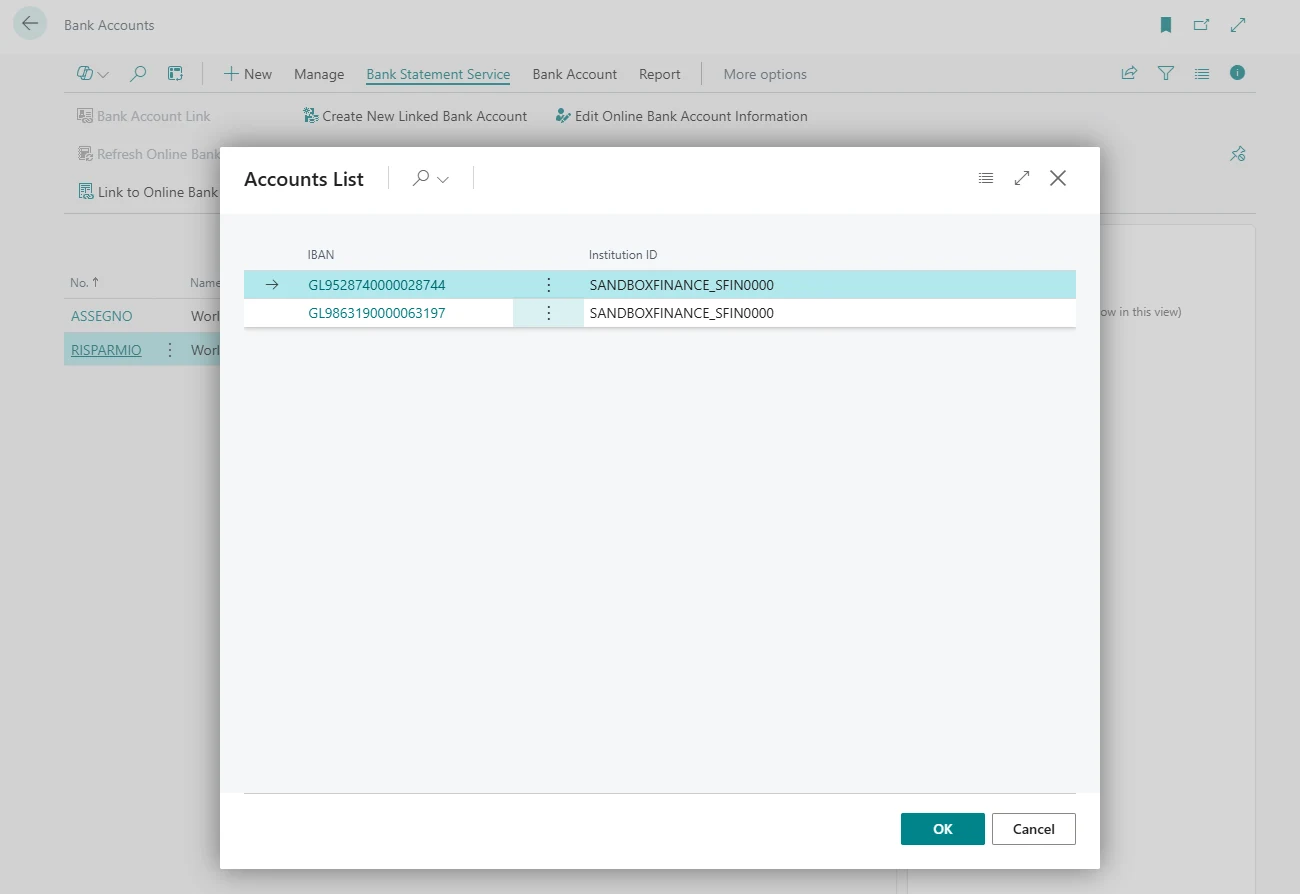
Business Central lists the accounts available at Revolut. Choose the one to link.
Set up the import
Choose the import schedule and whether transactions go to the payment reconciliation journal or to the bank account reconciliation.
Other currencies
On the bank accounts of the other currencies, choose Link to Existing Connection. No new sign-in is needed.































Questions
More in the documentation.
Can Banking Central make payments from Revolut?
No. Access is read-only: Banking Central reads balances and transactions.
Do I have to sign in to Revolut for each currency?
No. After the first currency, the others are linked to the same connection.
Does the connection expire?
Yes. Open Banking connections have to be renewed periodically by signing in to Revolut again. Banking Central can send an email before the connection expires.
Try Banking Central with Revolut
All the features are included in the 30-day free trial.